How to set up on your device
Android TV & Fire TV Setup
Choose your device type below and follow the steps to get started.
Option 1: Android TV / Google TV
(Nvidia Shield, Chromecast, Onn 4K, Sony, Hisense, TCL Smart TVs)
Open the Google Play Store
Go to the Apps section on your home screen and open the Google Play Store.
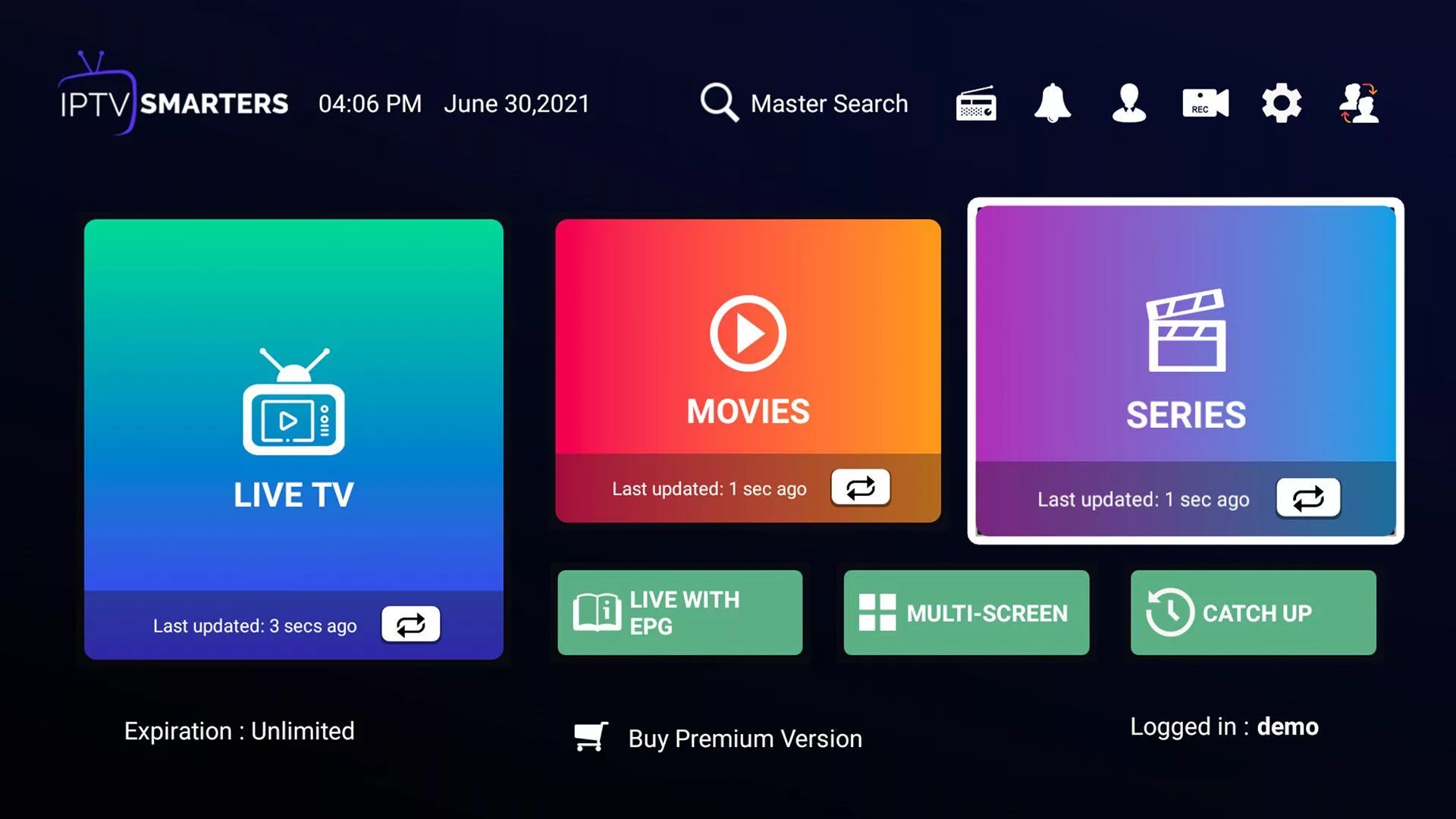
Install IPTV Smarters Pro
Search for IPTV Smarters Pro and tap Install.
Option 2: Amazon Fire TV Stick & Fire TV Cube
(Fire TV Stick Lite, 4K, 4K Max, and Fire TV Cube — all generations)
Install the Downloader App
Search the Amazon Appstore for Downloader (orange icon) and install it. This free app lets you install apps that aren't in the Appstore.
Allow Apps from Unknown Sources
Go to Settings > My Fire TV > About. Highlight your device name and press the center button on your remote 7 times to turn on Developer Options. Then go back one screen, open Developer Options, and enable "Install Unknown Apps" for Downloader.
Download the App
Open Downloader and enter code 12345 to download and install IPTV Smarters Pro.
Log In to TerraBit TV
Open IPTV Smarters Pro and select "Login with Xtream Codes API." Enter the details from your confirmation email:
- Any Name: TerraBit TV
- Username: (from your confirmation email)
- Password: (from your confirmation email)
- Server URL: (from your confirmation email)
⚙️ Prefer TiviMate?
TerraBit TV works great with TiviMate Premium. On your Firestick, open Downloader and enter code 272483 to install it, then log in using the same details above.
Tip: Use a VPN for the Best Experience
Some internet providers slow down streaming traffic. Using a VPN before you start watching can prevent buffering and improve picture quality, especially for 4K streams.
Apple TV & iOS Setup
Apple devices use the App Store, so setup is straightforward — no special settings or workarounds needed.
Install Smarters Player Lite
Open the App Store on your Apple TV, iPhone, or iPad, search for Smarters Player Lite, and install it.
Open the App and Choose Your Login Method
Launch Smarters Player Lite, accept the terms, and select "Login with Xtream Codes API".
Enter Your Login Details
Enter the details from your confirmation email:
- Playlist Name: TerraBit TV
- Username: (from your confirmation email)
- Password: (from your confirmation email)
- Server URL: (from your confirmation email)
🍏 Prefer a Different App?
TerraBit TV also works with iPlayTV and Snappy IPTV, both available on the App Store. Just log in using the same details above.
Tip: Use a Wired Connection
For the smoothest 4K streaming, plug your Apple TV directly into your router with an Ethernet cable rather than using Wi-Fi.
Windows PC & macOS Setup
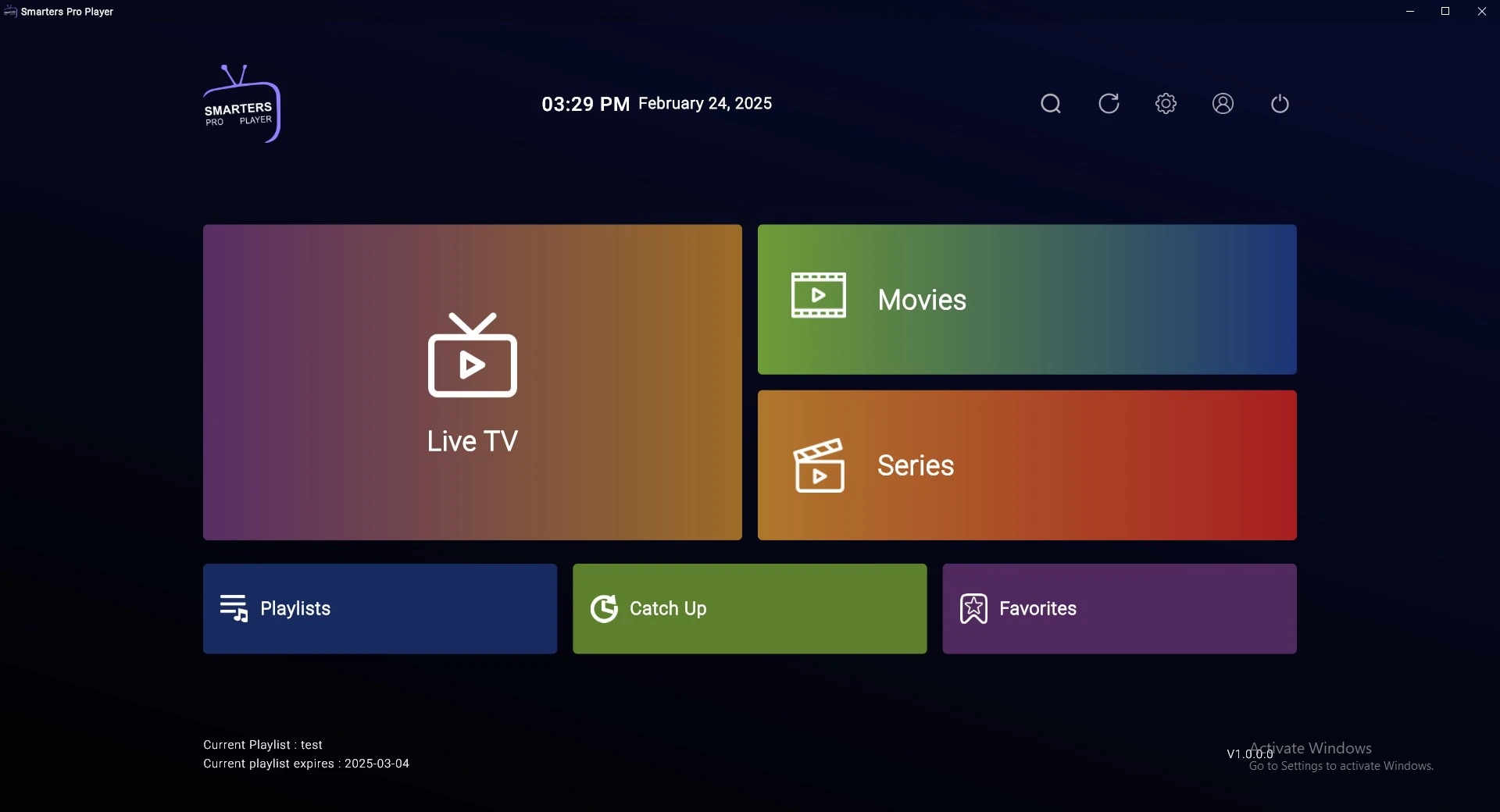
Watch TerraBit TV directly on your computer by installing our recommended app below.
Download IPTV Smarters
Choose the version for your computer:
Install and Open the App
Run the downloaded file to install it. When it opens, click Allow if your computer asks for permission, then select "Log in with Xtream Codes API".
Enter Your Login Details
Enter the details from your confirmation email:
- Name: TerraBit TV
- Username: (from your confirmation email)
- Password: (from your confirmation email)
- Server URL: (from your confirmation email)
Tip: Enable Hardware Acceleration
For smooth 4K and sports playback, make sure hardware acceleration is turned on in the app's settings. This uses your graphics card for video playback instead of your CPU, which reduces buffering.
Smart TV Setup (Samsung & LG)
Get TerraBit TV running directly on your Samsung or LG Smart TV in just a few steps.
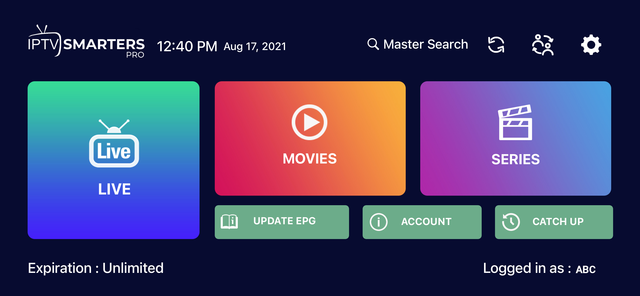
Install IPTV Smarters Pro
Press the Home button on your remote and open the Samsung App Store or LG Content Store. Search for IPTV Smarters Pro and install it.
Log In to TerraBit TV
Open IPTV Smarters Pro and select "Login with Xtream Codes API." Enter the details from your confirmation email:
- Any Name: TerraBit TV
- Username: (from your confirmation email)
- Password: (from your confirmation email)
- Server URL: (from your confirmation email)
Click Save, then refresh IBO Player on your TV to start watching.
Tip: Use a Wired Connection
Smart TVs can struggle with 4K streaming over Wi-Fi. Plugging your TV directly into your router with an Ethernet cable will give you a much smoother, buffer-free picture.